Category: Uncategorized

  • WPTavern: #188 – Bud Kraus on Teaching and Using WordPress With Low Vision

    Transcript

    [00:00:19] Nathan Wrigley: Welcome to the Jukebox Podcast from WP Tavern. My name is Nathan Wrigley.

    Jukebox is a podcast which is dedicated to all things WordPress. The people, the events, the plugins, the blocks, the themes, and in this case teaching and using WordPress with low vision.

    If you’d like to subscribe to the podcast, you can do that by searching for WP Tavern in your podcast player of choice. Or by going to wptavern.com/feed/podcast, and you can copy that URL into most podcast players.

    If you have a topic that you’d like us to feature on the podcast, I’m keen to hear from you and hopefully get you, or your idea, featured on the show. Head to wptavern.com/contact/jukebox and use the form there.

    So on the podcast today we have Bud Kraus. Bud was diagnosed with mascular degeneration, a condition often associated with old age, when he was 37. Affecting both eyes, this gradually eroded his central vision, making it difficult for him to see straight ahead, recognize faces, drive or read.

    Despite these challenges, Bud’s peripheral vision remained intact, sparing him the need for a cane or guide dog, and allowing him to continue to navigate daily life. Through perseverance and adaptation, Bud continues to live fully, facing the hurdles of vision loss with resilience and optimism.

    Bud opens up the podcast by talking about his experience living with legal blindness, how his central vision loss has shaped everything from everyday activities to his professional routines. He explains the practical ways he adapts his devices and workflow, including tweaks to operating system settings, using screen zoom functions, and relying on pattern recognition to teach coding, write tutorials, and even host his Seriously, Bud? podcast. His unique perspective sheds light on the often overlooked nuances of accessibility, reminding us that every user interacts with technology differently.

    Bud also chats about the broader impact of accessibility in the WordPress space, from frustrations with hard to navigate interfaces, to the importance of not excluding users who may become your audience or customers. His reflections reveal how living with low vision pushed him beyond mere acceptance, helping him discover new opportunities, hone his teaching skills, and even find humour in daily challenges.

    Bud’s story serves as a powerful reminder of the importance of designing with empathy, embracing adaptation, and viewing accessibility, not just as a technical requirement, but as a source of creativity and connection. It’s full of real world tips, personal anecdotes, and a dose of inspiration.

    Whether you’re a designer, developer, educator, or simply passionate about building a more inclusive web, this episode is for you.

    If you’re interested in finding out more, you can find all of the links in the show notes by heading to wptavern.com/podcast, where you’ll find all the other episodes as well.

    And so without further delay, I bring you Bud Kraus.

    I am joined on the podcast by Bud Kraus. Hello, Bud.

    [00:03:35] Bud Kraus: Hello, Nathan. Thanks for having me.

    [00:03:37] Nathan Wrigley: Yeah, you’re very welcome. This is not the first time we’ve spoken, but it is the first time we’ve spoken at an event because we’re both at WordCamp US in Portland, it’s 2025. We’re in a corridor, so I’ve got to say at the very outset, if it ends up being quite noisy, there’s not a lot we can do about that. But we’ve done our best. We’ve found a nice quiet little alcove, and we’re going to be chatting today to Bud about his experience online. Before we do that, Bud, do you mind just telling us a little bit about yourself? Give us your potted bio, if you like.

    [00:04:01] Bud Kraus: Yeah, sure. So I create WordPress content for WordPress businesses, articles, blog posts, tutorials, videos, and I am the host of the podcast called Seriously, Bud?

    [00:04:14] Nathan Wrigley: And the talk that you’re doing at WordCamp US, which I guess you haven’t yet done, because we’re on the first day of presentations and it’s fairly early on. You haven’t done it, right?

    [00:04:23] Bud Kraus: No, I actually, no, I haven’t done it yet, but I’ve done this a couple times, so this is not my first time doing this talk.

    [00:04:29] Nathan Wrigley: So you know how it’s going to go. It’s called using low vision as my tool to help me teach WordPress. Now, that kind of leads us into the subject at hand really. We’re going to be talking about how it is that your experience of the web may differ from other people.

    Are you willing to just tell us a little bit about your experience in the offline world as well as the online world? What is it that you are dealing with on a day-to-day basis?

    [00:04:50] Bud Kraus: Sure. So I have macular degeneration, which is a condition of old age, which I got when I was 37. And it’s the leading cause of legal blindness in the United States. It’s a destruction of your central vision.

    I have the condition in both eyes, which means I really have it. And it makes it very hard for me to see straight ahead, recognise faces, reading. I can’t drive a car, which is okay. So anything that’s straight ahead.

    Now, my peripheral vision’s perfectly intact, so that means I don’t need to have a seeing eye dog or a cane, or I don’t bump into things because the peripheral vision’s fine. But the very fine vision that we all use to see straight ahead, like to thread a needle, that’s what I’m missing.

    [00:05:30] Nathan Wrigley: So are you able to describe what you are seeing in that area. And is it like the central portion of your site?

    [00:05:38] Bud Kraus: It is the exact central portion of my sight. So I tend to see elliptically, which means I move my eyes around to get a better picture. Like, when I’m looking at you right now, I’m moving my eyes around so I can see better because of the destruction of the centre part of my vision.

    [00:05:52] Nathan Wrigley: And does that rule out certain tasks? So for example, you mentioned reading there. Obviously I do not have what you have, and so it’s a given to me that when I’m staring as I am doing at the moment at my laptop, my eyes, the bullseye, if you like, of my eyes go straight to the letter looking at. And for me, it’s hard to imagine deploying my peripheral vision to do that, but can you, for example, do things like reading or is that out of the?

    [00:06:16] Bud Kraus: You can’t, peripheral vision is not a, it’s not even close to being a perfect substitute for central vision. So the answer is no. You cannot read with peripheral vision. You cannot understand. You can see, but you can’t understand. And it just makes things difficult.

    [00:06:33] Nathan Wrigley: Yeah. So how does that affect your real life? So obviously you mentioned things like being unable to drive a car or things like that. Is there anything else that might give us a frame of reference for just how profound it is?

    [00:06:44] Bud Kraus: Well, I like to look at it differently. So I have a different approach to this. So when I first was diagnosed with this when I was 37, I thought, oh, this is the worst thing that could ever happen. And that makes sense, but it is not the worst thing that could ever happen.

    And having lived with this for quite a long time now, I look at this not as a curse, but as a blessing. Because what it’s done is allow me to have so many different opportunities, experiences, ideas, thoughts, whatever that I would’ve not otherwise had.

    So that process of going, it’s the grief process when you start from, you know, this is the most horrible thing in the world, to acceptance. I’m actually beyond acceptance. It’s like, I like this. This is okay with me. And do I wish it on other people? No, I don’t. But like I said, it’s not the end of the world. There are conditions and diseases that are far worse than this.

    So I do think of, and in fact in my talk that I’m giving, at the end I talk about why this is a blessing and not a curse. I mean, like for example, you can get as inebriated as you want at parties because you’re not going to be driving the car home. So there’s lots of that, okay. Or you don’t see your friends get older because you can’t see the detail on their face. When I go in a grocery store, I don’t see all the junk food, so that’s good. Is it inconvenient? Yes. Do I have a hard time finding people at a large event like this? Yes. But I manage.

    [00:08:09] Nathan Wrigley: So in the wider world, you can obviously deploy your peripheral vision. So we’re sitting in a, I don’t know, it’s maybe this room’s about 10 meters by 10 meters. There’s a lot of space. Whereas the thing that we’re talking about, WordPress, building websites and so on, it’s usually this constrained little, well, let’s say rectangle. It could be something that we’re holding our hands, a mobile phone or a computer, laptop, something like that. How does your situation, how does it get impacted by this then? Are you doing this peripheral vision, glancing left and right and trying to figure out what’s going on? Or do you have other tools, mechanisms, things that you deploy?

    [00:08:39] Bud Kraus: I do, and that’s what my talk is about. So, for example, I’ve taught WordPress and I taught coding for a long time. And people say, well, how do you do that if you can’t see?

    Well, one thing is I’m always very prepared. So when I go into a class, I can’t wing it. I just have to know exactly what I’m going to be doing. And in code there’s a lot of patterns and I recognise patterns.

    And, yes, I do use Zoom. I use audio. I use touch. Now, touch is not really relevant here, but I’m able to, with the technology as good as it has become for me, I’m able to Zoom in and out of the screen and I’m able to read things out loud. And then I have to do a fair amount of memory. But that’s okay.

    [00:09:22] Nathan Wrigley: So do you have adaptations that you make, let’s say for example, you go out today and you purchase a new computer, do you have adaptations that you make on an operating system level?

    [00:09:30] Bud Kraus: Yeah, I do.

    [00:09:31] Nathan Wrigley: Okay. I’m curious to hear about these because I make no modifications when I purchase, so tell me more.

    [00:09:35] Bud Kraus: Yeah, good question. So one of the things I do, and I’ll be demonstrating, is my resolution is a low resolution, meaning 1024 by 768 would be low today. In the olden days, that would be high. But it makes the screen, it makes it easier for me to see the screen. And then I make all kinds of adjustments to make icons bigger, letters bigger, so that it’s just works for me. And yeah, I don’t have a problem with it.

    Now, it does cause me to do things maybe a little slower because it’s just harder for me to maybe find something. But I think I mentioned that patterns is a very important thing to me. So if I’m going to a website and they change the UI totally around, that’s going to be a pain in the neck for me, because then I have to relearn where everything is.

    It’s sort of like changing the furniture if you were blind, I mean, really blind, which most people aren’t. So I’m legally blind but, you know, I’m not like lights out blind. If you change where things are, then it’s going to make things very difficult for me, whether it’s in the real world or in the virtual world. I have to relearn everything.

    [00:10:35] Nathan Wrigley: A sort of curious question that’s just occurred to me. When you buy a new computer, is there a process whereby you have to combat the regular default icon size and default tech size, just for a moment in order to wrangle it into the version of the OS that you need?

    [00:10:50] Bud Kraus: You’re absolutely right. So if you’re booting up for the first time, it’s a hole in the whole process, which is at least the last time I did, which is there’s no audio, there’s no nothing, and you’re seeing like little tiny print to, you know, configure the language and the location and the time and all that stuff that you do when you work with a computer for the first time. That is a real problem, yeah.

    [00:11:11] Nathan Wrigley: You would imagine that there’d be some mechanism to invoke that as the first thing that happens?

    [00:11:17] Bud Kraus: I think so.

    [00:11:17] Nathan Wrigley: Yeah, that’s interesting.

    Okay, so we’ve talked about the wider world. We’ve talked about a computer that you may modify. Let’s get onto the bit which we are all here for, which is WordPress. Are there any adjustments or tools, or this could extend to the browser, so it may be browser tools, what have you, but for the internet, let’s say, what are the modifications that you are making to make your life possible there?

    [00:11:37] Bud Kraus: You know, I don’t think there’s anything really any different than anybody else makes. I mean, the biggest thing is I will either zoom in or out of a webpage. And it’s really funny because, if you’re using a certain screen size with a certain resolution, things can get very hard to work with. I don’t think enough companies, like I’m thinking of even LinkedIn, for example, that I was using today. Sorry to call them out, but it’s just like their chat areas were just really, I just had to do all kinds of crazy things to actually see the text. And then the text was really small.

    I think because I’m a stress case, that they don’t always test down to my level. And I think it’s, I just accept it. But that’s the way it is, I guess. But I think that you don’t want to exclude people from anything really, because they may be your customer. And if I can’t buy something because it’s really hard to do, and that is something, I don’t know if I’ve ever talked to you about it, but other people, that if I am discouraged from buying something because it’s just, the UI is just too hard to work with, I’ll just find an alternative. I will. Or I’ll ask my wife.

    [00:12:39] Nathan Wrigley: I guess you’re in a curious space as well in that we hear a lot in the accessibility space about things like screen readers and those kind of assistive technologies. I guess you are not deploying those because you have enough sight to not have that as a, something to lean upon.

    [00:12:54] Bud Kraus: Yeah, that’s exactly right. I have not, and don’t use JAWS or any of those big fancy screen reader technologies. I just use what’s built into the macOS and I just highlight the text and I press a button and it reads. I think it’s called voiceover, or it’s text to speech, or whatever it is. And it’s in the accessibility part of the settings.

    I don’t use technology beyond what I need it for. It’s just overkill. What do I, those are complicated systems to master, so I stay away from that because they don’t need it.

    [00:13:22] Nathan Wrigley: So when you are building websites, is there anything unique about the way that you do that? Is there any sort of, again, a tool that you deploy? Or maybe you are relying on other human beings to sort of cast their eye over it a second time after you’ve done the work. I don’t know, just talk us through that whole thing.

    [00:13:37] Bud Kraus: Well, I don’t make websites. No, I have, okay. I’ve done everything, but I don’t make websites because I don’t like to make websites. It’s not because of my vision. But yes, if I am working, in the past like I have, I would ask people to help me with, particularly with colour because I have a very, I think I have a poor colour palette. And I think that’s either, it’s because of me. So I have to ask, does this go good with this?

    It’s just something that I, either I’m not good at, or I’m not interested, or my vision, or whatever it is. So I do have a problem with colour in that regard. But because of the technology and the tools that are built in, it’s not as difficult as one might think.

    [00:14:15] Nathan Wrigley: Interesting. Yeah, okay. We’ll get into that. But you do make a podcast, and there’s lots and lots of different spinning wheels that have to done there. You know, you’ve got to book people onto the show, you’ve got to have calendars, you’ve got to have posts and pages and things like that on the website. Is there anything uniquely interesting about, I understand the process of making a website from my perspective, there anything that would be different to my process than would be for yours?

    [00:14:36] Bud Kraus: Yes, I think one thing I could think of is like a lot of times I won’t, let’s say in WordPress, you can write into the editor, you could write a page or a post right into the Gutenberg, the block editor. I choose not to do that. What I do is use a notepad, or not notepad, what is it for a Mac? I forgot.

    [00:14:53] Nathan Wrigley: TextEdit.

    [00:14:54] Bud Kraus: Yes, TextEdit. Thanks. I’ll use that and I’ll have the font blown up bigger than normal, and I’ll just edit in there, and then I’ll just take that and then I’ll copy that and paste that into WordPress. It’s just easier for me to do it that way. So I just like it that way. You know, everybody has their own little thing. That’s my little thing. And I think it’s because of my vision.

    [00:15:14] Nathan Wrigley: And in terms of kind of getting the recording software to work and things like that, how do those UIs function for you?

    [00:15:19] Bud Kraus: Yeah, pretty good. The problem I have with learning something new and complicated is that, I think it’s like everybody, quite frankly, I get confused and try to figure out where’s what. And like I was using, I use Descript, and it just took me quite a while to figure out, how do I do this? How do I do that? But like anything else, once I learn it, it’s pretty solid and it gets easier.

    Now I do tend to blow things up to make it bigger. And my wife is always telling me, I can’t use your computer because stuff is too big. Now, I don’t think it’s too big, but she does. And when I look at other people’s computers, then I realise, no, it’s bigger than theirs.

    [00:15:53] Nathan Wrigley: Okay, so we’re in the era of Gutenberg. It sounds like you’ve been using WordPress for a fairly long time, presumably before Gutenberg. What’s your opinion on whether or not that was a move in the right direction? In other words, is it favorable? Is it more straightforward for you to create a post? I know that you said in the scenario for a podcast, you’re writing it elsewhere and copying and pasting it in. But with other things like, I don’t know, laying out content and writing paragraphs and things, do you think it’s a good experience? Did we go in the right direction there?

    [00:16:18] Bud Kraus: That’s a very hard question for me to answer. I’ll answer it in a couple of different ways. One, as far as accessibility goes, I’m no expert in this. I am not an accessibility expert. Am I a stakeholder? We all are. But I can’t answer it in that regard.

    But from a more technical standpoint, because I write technical articles for Kinsta, Hostinger, others, that I find it to be difficult. I know I was told it’s not supposed to be easy, so it certainly doesn’t match the easy. Yeah, and that has nothing to do with my vision. It’s just, I feel it’s just complicated, even though I’ve learned quite a bit of the technical side of this stuff. I’m not trying to be cute here, but I’m trying to be cute, and I just can’t answer that question that’s going to provide any value so.

    [00:17:06] Nathan Wrigley: I was kind of wondering if there was a thing which, if you could click your fingers and make it appear in the Block Editor or the Gutenberg interface, which you would, and I don’t know that you’ve got got an answer to that.

    [00:17:15] Bud Kraus: I, let me think. No, I don’t think so. No. And I use Elementor too. So I think from a logic standpoint, Elementor seems to be easier for me. What I just don’t like is a lot of confusion. Too much information built into a UI is a real problem for me.

    Nathan, the funny thing is I feel like I have a special filter on the world that other people don’t have. This is another one of these blessings, that gives me the ability to understand what works and what doesn’t work without having to ask somebody because it’s just built in.

    Now, the thing about disability or this field in general, which is huge, it’s very idiosyncratic. So my setup is good for me, but it may not work for somebody else. And it’s very hard to, as those who keep accessibility in mind, and hopefully it’s everybody. It’s a very difficult subject because how do we design our systems, our content so that the greatest number of people can access this information, or whatever, on the largest number of devices. I mean, that’s what accessibility to me is about.

    [00:18:24] Nathan Wrigley: It’s curious that you said, I think you said at the beginning that your condition is one which will deteriorate over time.

    [00:18:31] Bud Kraus: Well, macular degeneration, generally, can get worse over time. But fortunately, for reasons that we don’t need to get into, since 1992 it’s been very stable, which I’m really fortunate because trust me, I don’t want it to get any worse than this. I don’t need another, that much of a blessing.

    [00:18:50] Nathan Wrigley: Yeah, I was wondering from that, whether or not the accessibility side of WordPress is something that you lean into. Do you attend those kind of, I don’t know, WP Accessibility Day, those kind of events?

    [00:18:59] Bud Kraus: No, it just doesn’t really interest me. You know, back in like 1999, 2000, I was teaching a course at Pratt Institute in New York called Accessible Web Design. And it was way ahead of its time. And the concepts I was teaching were basically concepts because the browsers and technology just wasn’t there yet. So you’d have to say, well, one day, and one day did happen in large measure.

    And then I started realising, I just didn’t want to like make a career out of teaching this or testing or, you know, I started to meet people in the field and I just said, I don’t really like this. I mean, just because I’m, I have a disability doesn’t mean I have to like the field of accessible design, you know, accessibility.

    [00:19:40] Nathan Wrigley: Yeah, that’s interesting. You are wearing a WordCamp Montclair t-shirt, which kind of tells me that not only are you attending this event, WordCamp US, but you’re also attending other ones as well. Is that a big part of your life? If it is, how accessible are things like this event? Do you come here fully expecting of yourself that you’ll have a full experience the same way that everybody else does?

    [00:19:59] Bud Kraus: Well, I have a good experience, but it is not the same way everybody else does. For example, I can’t see the screens at all. And when they’re doing stuff, the slides, I’m just listening, okay. It’s sort of like, I watch TV a lot that way too. I hear things. Unless I got really close, I’m not going to be able to see what’s on the screen. If I took a picture of something that’s really important, yeah, that’ll help.

    But generally speaking, that doesn’t work for me. And then it could be kind of a, yes, I’ve gone to many WordCamps, but they’re all sort of the same in terms of the issues. And I don’t even think of them as issues anymore. I just think of it as like, we’re all different. This is the way I’m different. And talking about this stuff, quite frankly is like talking about being right-handed. Would you do an interview of me being right-handed?

    [00:20:42] Nathan Wrigley: Yeah, fascinating. I guess, from my perspective, because I just don’t, I can’t prize that open my own life, it’s really intriguing to sort of try to have some sort of understanding of how it differs from my experience to your experience. And I guess for you it’s, this is how I live.

    [00:20:58] Bud Kraus: Yeah. But Nathan, you know, vision is a spectrum. It’s a continuum. It isn’t just everybody looks at things the same way. No. So I don’t think, alright, I’m like sort of on one end of the spectrum, I get it, but everybody looks at things differently. And I don’t mean that figuratively, I mean that literally. So I don’t think of it anymore much as a handicap, you know, other than the fact that, yeah, that’s a pain in the neck sometimes. And sometimes you find yourself doing some foolish things.

    And I think the hardest thing for me at these events is that I won’t know who I’m talking to until about five minutes after I’m talking to them, and I figured out by looking at their shape, stuff like that, that I can, oh, I’m talking to Nathan Wrigley, or your accent, or something like that.

    [00:21:42] Nathan Wrigley: Yeah. You’re obviously quite keen on the sort of education side of things though because you’re writing tutorials. I’ll link in the show notes to one that you wrote for Smashing Magazine, which is no mean feat. Getting in there is really rather impressive. So well done for that.

    But you’re also obviously turning up two events like this. And it sounds from what you said as if this is content that you’ve done before. So very keen on that, even though it may be talking about, you were describing there, it’s like talking about whether you’re right-handed. You’ve put together this presentation in which you’re going to share these different bits and pieces about how you make amendments and adjustments to WordPress and the operating system and so on. So do you enjoy the education side of it?

    [00:22:16] Bud Kraus: Oh, absolutely. I’m a teacher at heart. I mean, you know, that’s what I’ve been doing for 25 years. And even in the writings that I do, they’re basically, it’s a different way of teaching. Now the talk that I’m giving though here, the funny thing is, as I’ve said, I’m sort of like cool to the idea to be honest about it. There are other talks I’d rather give than this one, but this is the talk that everybody seems to be interested in. And I get that.

    And when you come up with a topic called using low vision is a tool to help me teach WordPress, that’s a winner because you got two things in there that everybody loves. One, we love disability, and two, we love teaching WordPress. So two weird things got put into one title.

    [00:22:57] Nathan Wrigley: It’s a hit.

    [00:22:58] Bud Kraus: It got to be a hit, right.

    [00:22:59] Nathan Wrigley: What would be the presentation that you would do?

    [00:23:01] Bud Kraus: Ah. The one that I’m threatening to do instead of this one, because I keep saying, I don’t wanna do this one, let me do another one. There’s two.

    One is, burnt out on web design, what your future career could be, which is my story.

    And the other one is, show me the money, how to get sponsors to financially help with your podcast, event, whatever. I like that topic, show me the money.

    [00:23:24] Nathan Wrigley: Paraphrasing, just a minute, what are the nuggets? Because I’m curious about that one.

    [00:23:27] Bud Kraus: Oh, come on. You could teach me, okay?

    [00:23:30] Nathan Wrigley: What are the nuggets in there though?

    [00:23:32] Bud Kraus: Well, in my case with my podcast, I’ve been sort of lucky in that they came to me and said, we’d like to sponsor you. Which is a shock because when I started the podcast a year and a half ago, or actually the idea was, it’s now two years old, I said, I didn’t care if anybody ever listened, I didn’t care if anybody ever sponsored. And then of course, over time, I did care.

    But I never thought of my show ever being sponsored. I said, I’ll just do it. And then I started realising, hey, this takes a lot of time, should get paid for this. And, you know, I feel just, if I have a second or two say how fortunate I am to be a part of all of this because at my advanced age, to be in this community with such smart, brilliant, whatever, people that are friendly. When I talk to people my age who are generally retired or retiring and, their world gets smaller and mine gets bigger.

    [00:24:24] Nathan Wrigley: Oh, that’s interesting.

    [00:24:25] Bud Kraus: So I’m really, really lucky about that.

    [00:24:28] Nathan Wrigley: Yeah. I don’t know what your age is, but I am of a certain age, and I’m kind of feeling at the moment that there’s this whole thing which everybody wants to talk about, which is AI. And I’m kind of feeling as if that train has already, you know, that ship has sailed for me. Can’t invest all of the time and what have you to learn all of the different bits and pieces. It’s like there’s another bus coming. I don’t know what you think about that.

    [00:24:47] Bud Kraus: Well, I’ll tell you what it is, for me, it’s been a career extender, because I am now writing at a level for Kinsta, technical articles that I could not otherwise write. And because of my use of, and if you will, mastery of AI, I’ve been able to code things that I could not do before. So I’ve always had sort of, for the longest time, because I taught great foundation of HTML, CSS, some JavaScript, whatever. So I know this stuff, okay.

    But to elevate that knowledge, to create stuff now that is much more complicated, sort of like junior development oriented stuff or maybe a little bit beyond that. That is amazing. And it’s because of AI.

    [00:25:28] Nathan Wrigley: That’s fascinating.

    [00:25:30] Bud Kraus: It’s extending what I can do.

    [00:25:32] Nathan Wrigley: Yeah, you feel like you’ve got a new lease of life there.

    [00:25:34] Bud Kraus: Yeah, a bit. So I don’t have to keep writing the same things over and over about how to create a post. You know, I’ve done that. I want to be challenged to learn new things, and AI is helping me do that. And we’re teaching AI, and AI is teaching us. So it’s really cool.

    [00:25:49] Nathan Wrigley: Your presentation, is it today or tomorrow?

    [00:25:51] Bud Kraus: Well, it’s tomorrow.

    [00:25:53] Nathan Wrigley: I was going to say, you’re looking very calm for somebody that has a presentation later today.

    [00:25:56] Bud Kraus: Well, you know, I’ve been around the block. I’m not going to be nervous. Now what I do have to do is I’ve got to do some more memorisation. And that’s what I talked about always being prepared. I just can’t go in there and read the slides. It’s not going to happen. So I have to really know what the slides are, what the order is, and what the words are on the screen. I don’t have to read those words, but I have to know the ideas behind all this.

    [00:26:16] Nathan Wrigley: So in some sense, you’ve memorised it more or less. Oh, that’s interesting. So you’ve really applied thought to every, more or less, every sentence that comes out of your mouth.

    [00:26:24] Bud Kraus: Basically.

    [00:26:25] Nathan Wrigley: But you don’t get nervous.

    [00:26:26] Bud Kraus: We’re with friends.

    [00:26:28] Nathan Wrigley: I would get so nervous.

    [00:26:29] Bud Kraus: At least I like to think so.

    [00:26:30] Nathan Wrigley: Yeah. No, I agree. Every time I’ve been to a presentation, even when the person delivering it has been quite nervous, there’s always been a very positive sentiment in the room.

    [00:26:39] Bud Kraus: I’ll tell you why I don’t get nervous, I don’t see their faces.

    [00:26:41] Nathan Wrigley: Oh.

    [00:26:42] Bud Kraus: So if you don’t see their faces. There’s so many advantages of vision impairment. I know it sounds crazy, but if you don’t see their faces, then you don’t see their reactions. Now, of course, that’s a negative too. But then you don’t get nervous.

    [00:26:55] Nathan Wrigley: Absolutely fascinating. Well, I wish you the best of luck with it. It will be out on wordpress.tv at some point. Typically now they come out really soon. These flagship events, they turn them around really quickly.

    [00:27:06] Bud Kraus: Well, I don’t know when this is coming out, but this is going to be live streamed around the world.

    [00:27:09] Nathan Wrigley: Is it?

    [00:27:10] Bud Kraus: Yeah. So one person can watch.

    [00:27:11] Nathan Wrigley: The point being, dear listener, that if you’ve enjoyed this episode and you want to follow on the talk, the presentation that Bud has given at WordCamp US, by the way, maybe the quickest way to do that is to just Google, either WordCamp US 2025. Or Google, using low vision as my tool to help me teach WordPress. That’s the other short circuit if you like. You’ll be able to see exactly what it is that Bud delivered.

    I have no further questions, so unless you’ve got something to add, I will say thank you very much for chatting to me.

    [00:27:40] Bud Kraus: Well, thank you Nathan. And you know I’m a big fan of what you do and thanks for having me on.

    [00:27:43] Nathan Wrigley: Thank you so much.

    On the podcast today we have Bud Kraus.

    Bud was diagnosed with macular degeneration, a condition often associated with old age, when he was 37. Affecting both eyes, this gradually eroded his central vision, making it difficult for him to see straight ahead, recognize faces, drive or read. Despite these challenges, Bud’s peripheral vision remained intact, sparing him the need for a cane or guide dog, and allowing him to continue to navigate daily life. Through perseverance and adaptation, Bud continues to live fully, facing the hurdles of vision loss with resilience and optimism.

    Bud opens up the podcast by talking about his experience living with legal blindness, how his central vision loss has shaped everything from everyday activities to his professional routines. He explains the practical ways he adapts his devices and workflow, including tweaks to operating system settings, using screen zoom functions, and relying on pattern recognition to teach coding, write tutorials, and even host his Seriously, Bud podcast. His unique perspective sheds light on the often-overlooked nuances of accessibility, reminding us that every user interacts with technology differently.

    Bud also chats about the broader impact of accessibility in the WordPress space, from frustrations with hard-to-navigate interfaces to the importance of not excluding users who may become your audience or customers. His reflections reveal how living with low vision pushed him beyond mere acceptance, helping him discover new opportunities, hone his teaching skills, and even find humour in daily challenges.

    Bud’s story serves as a powerful reminder of the importance of designing with empathy, embracing adaptation, and viewing accessibility not just as a technical requirement, but as a source of creativity and connection. It’s full of real-world tips, personal anecdotes, and a dose of inspiration.

    Whether you’re a designer, developer, educator, or simply passionate about building a more inclusive web, this episode is for you.

    Useful links

    Using Low Vision As My Tool To Help Me Teach WordPress, Bud’s presentation at WordCamp US 2025

    JAWS, Job Access With Speech software

    Pratt Institute

    Descript

    Using Low Vision As My Tool To Help Me Teach WordPress, Bud’s post on Smashing Magazine
  • Open Channels FM: From Home Kitchen to International Orders

    Using WooCommerce and open source to take kitchen baking into an online cake business, embracing cake in a jar and building a vibrant brand with community support.
  • I tested 9 best AI automation tools for WordPress (my honest reviews)

    I tested 9 best AI automation tools for WordPress (my honest reviews)

    I love creating and managing WordPress websites, but to be honest, it sometimes feels like a full-time job in itself. I remember the early days of juggling content, plugin updates, and marketing tasks, often feeling like there weren’t enough hours in the day to do it all.

    You’re trying to grow your business, not get bogged down by repetitive website chores.

    To fix this, I have been using AI-powered WordPress automation tools and plugins. Think of these tools like smart assistants for your site, saving you hours every single week that you can now use to focus on bigger goals.

    This guide will walk you through the best AI automation tools for WordPress that I have been using. I’ll show you which ones are easy to set up, when to use them, and how much time they would save you.

    Best AI automation tools for WordPress

    What Are the Best AI Automation Tools for WordPress? (The Quick Answer)

    If you’re in a hurry, here is a quick look at the top AI automation tools that I recommend for most WordPress users:

    Tool Best For Key Features Pricing
    Uncanny Automator All-round WordPress automations No-code workflows, 150+ integrations, AI connections (OpenAI, Gemini) Basic plan $149/year | Elite plan with AI workflows $399/year
    SeedProd AI website creation AI site builder, drag-and-drop editor, AI content/image generator Basic plan $31.60/yr | Plus plan $79.60 with theme builder support
    WPForms AI-powered form building AI form builder, smart field suggestions, CRM/email integrations Free plan, AI in Pro starting at $49.50/year
    FunnelKit Sales and email automations Funnel builder, email automation, upsells, A/B testing Free plan, Full automation suite starts at $129.50/year
    AIOSEO AI-driven SEO AI title/meta generator, llms.txt automation, AI social content Free version, AI tools in Pro from $49.60/year
    WPCode Safe custom code with AI AI code generator, conditional logic, safe snippet insertion Free version, Pro from $49.50/year
    StoreAgent WooCommerce content automation AI product descriptions, tag/category generator, review summaries Limited free plan, Paid from $49/month
    Make.com Advanced cross-platform workflows Free plan, Paid from $9/ 9/month Free plan, Paid from $9/month
    AI Power Content & image generation AI writing, image creation, chatbot, trains on your data Free version, Pro from $9.99/month

    What is AI Automation in WordPress (And Why Should You Care)?

    AI automation in WordPress is like having a super-smart assistant for your website. This assistant can handle all the boring, repetitive tasks that usually take up a lot of your time.

    Imagine your assistant automatically sending a welcome email when someone fills out a form, or creating a new customer account when a purchase is made. It frees you up to focus on the things that really matter, like creating great content or talking to your customers.
    The main reason you should care is simple: it saves you an incredible amount of time and effort. This allows you to focus on growing your business instead of getting stuck on manual website chores.

    Overall, using automation is one of the best ways to get ahead when you’re starting a WordPress blog.

    How I Picked the Best AI Automation Tools for WordPress

    Here was my criteria for selecting the best AI automation tools for WordPress.

    • Ease of Use: I picked the AI tools that don’t require complex setup and are easy to use, even for absolute beginners and small business owners.
    • Practical Time Saving: I avoided tools that were too broad and overly powerful. Instead, I picked up tools based on real-world and practical use cases for website owners and businesses.
    • Compatibility: I preferred tools that are made for or compatible with WordPress and popular plugins like WooCommerce, WPForms, SEO plugins, and more. This helps you automate more tasks more easily.
    • Costs: I avoided using automation tools that increased costs. For instance, I love n8n but didn’t include it here because it requires its own hosting and subscription on top of any AI platform or third-party integration that you use with it.

    With these factors in mind, I was able to narrow down the AI tools quite significantly.

    Why Trust WPBeginner?

    At WPBeginner, the services featured in our articles are carefully vetted by a team of real people.

    We recommend products that we use ourselves or have thoroughly tested. Our testing processes are rigorous and based on practical, real-world use cases. We deep dive into ease of use, dependability, pricing, and security.

    That way, we can be confident we’re presenting the best solutions to our readers. See our editorial process for more details.

    The 9 Best AI Automation Tools for WordPress

    Now, let’s take a closer look at each of the top AI automation tools I’ve tested and used on my own sites.

    1. Uncanny Automator

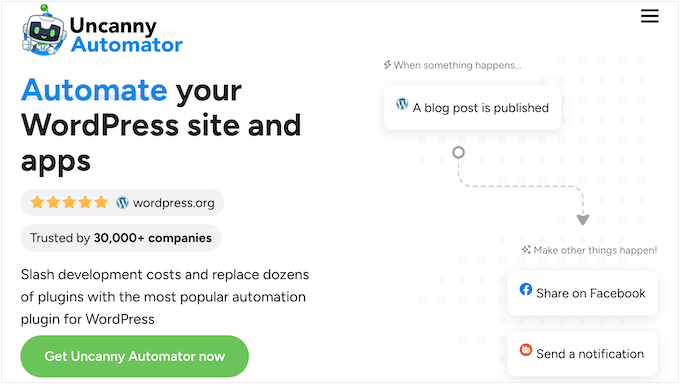
    The Uncanny Automator WordPress plugin

    Best for: All-rounder WordPress / WooCommerce AI automations 🏆

    Uncanny Automator is the #1 automation plugin for WordPress, and for good reason. It acts like a bridge between your other plugins, allowing you to create powerful automated workflows without touching a single line of code.

    I prefer Uncanny Automator over the complicated setups of n8n and Make.com workflows. For many WordPress tasks, it performs more predictably and reliably than any other automation tool I have used.

    It lets you integrate your WordPress site with popular AI platforms like OpenAI (ChatGPT), Gemini, and Perplexity. This allows you to use AI in your WordPress-specific workflows.

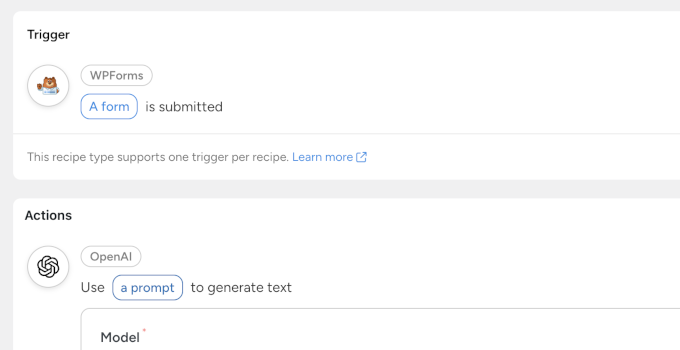
    Uncanny Automator using WPForms and OpenAI

    For instance, you can use AI to perform a sentiment analysis of form entries submitted by customers, respond to customer queries, and even generate content and images.

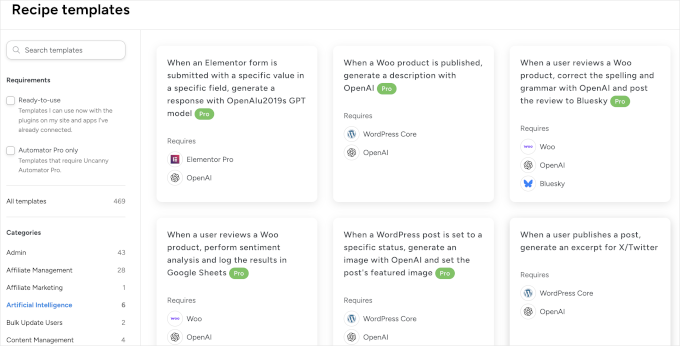
    I love the Recipe Templates feature within Uncanny Automator. It displays recipes I can use on my site, based on the plugins I have installed and the integrations I have connected. This helps beginners discover automation ideas and save time on creating recipes themselves.

    recipe templates

    Its unique superpower is its ability to enable your existing WordPress plugins to communicate with each other, as well as with AI platforms.

    For more details on what it can do, see our guide to creating automated workflows in WordPress with Uncanny Automator.

    • No-Code Builder: A simple “if this, then that” interface makes it easy for anyone to create automations.
    • 150+ Integrations: It works with all the top WordPress plugins like WPForms, WooCommerce, MemberPress, and more.
    • AI Integrations: You can connect directly to AI models like OpenAI’s ChatGPT and Google Gemini to generate content, summarize text, or analyze form entries right inside WordPress.
    • External App Connections: Connect your WordPress site to thousands of external apps like Google Sheets, Slack, and Zoom.
    Pros of Uncanny Automator Cons of Uncanny Automator
    Extremely easy for beginners to use Free version has limited triggers and actions
    Massive library of integrations Some advanced integrations require the Pro version
    Excellent AI connection features

    Pricing: Starts with a free version. Paid plans begin at $149 per year.

    My Experience: I use Uncanny Automator on almost every website I manage. It’s the simplest way I’ve found to make my plugins work together as a single, cohesive system. Creating my first recipe took less than five minutes, and it has saved me from countless hours of manual data entry and repetitive tasks. For more information, see our full Uncanny Automator review.

    2. SeedProd AI Website Builder

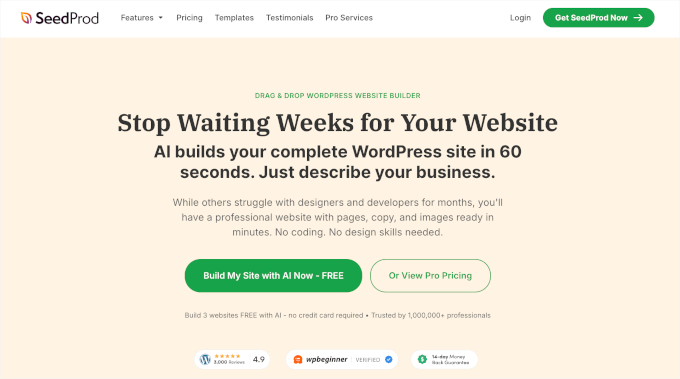
    SeedProd's homepage

    Best for: AI-powered website design in minutes 🎨

    SeedProd is a powerful drag-and-drop AI website builder for WordPress. It completely solves the “blank page” problem that so many of us face when starting a new website design. Instead of figuring it all out yourself, you just tell the AI what you want, and it will automatically create the design.

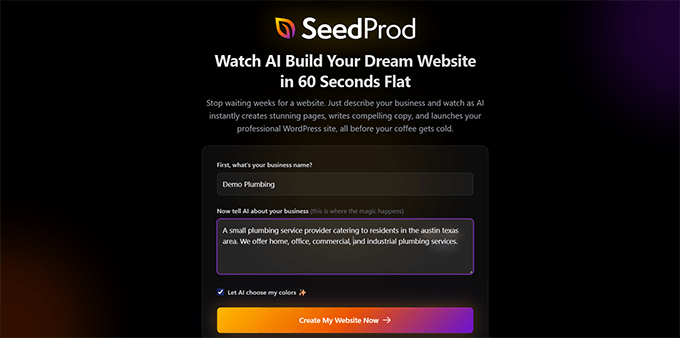
    I have used it to vibe code websites by simply entering a prompt, and it generates a ready-to-go website for me in less than 60 seconds.

    Providing a small prompt to vibe code a small business website using SeedProd AI

    I have used other AI website builders, and one thing that bothered me was that I was forced to use AI to make edits as well, which sometimes behaved unexpectedly.

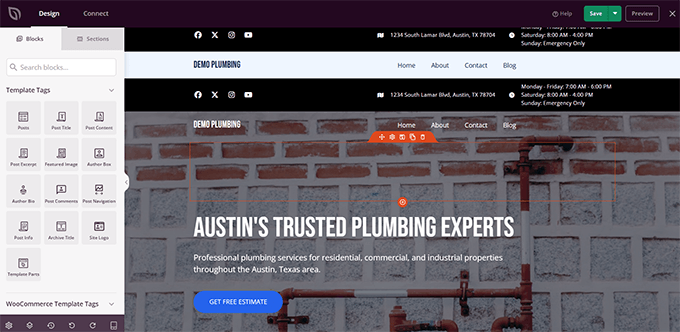
    With SeedProd, I have the option to use its intuitive drag-and-drop page builder to customize anything I want.

    Edit your website with drag and drop AI website builder

    I also loved the deep AI integration within the builder itself. It allows you to automatically generate text and even images when you need them.

    Key Features:

    • AI Website Generator: Describe your ideal site, and SeedProd builds a unique theme for you instantly.
    • AI Text & Image Generation: Create compelling headlines, body text, and find royalty-free images directly within the builder.
    • Drag-and-Drop Editor: Easily customize every part of your AI-generated site without any coding.
    • Pre-built Templates: Includes hundreds of professionally designed templates and block kits, providing a starting point for your projects.
    Pros of SeedProd Cons of SeedProd
    Incredibly fast way to build a website AI features require a Pro plan
    Generates high-quality, relevant content Free version has limited features
    Easy for non-techy users to customize

    Pricing: A free version is available. Paid plans start from $39.50 per year.

    My Experience: I have used SeedProd AI website builder to generate quick websites for personal use. It gives me a powerful start on any website design project and often generates a website that’s almost 80% ready. The design looks professional with conversion-focused copy and images. To learn more, see our full SeedProd review.

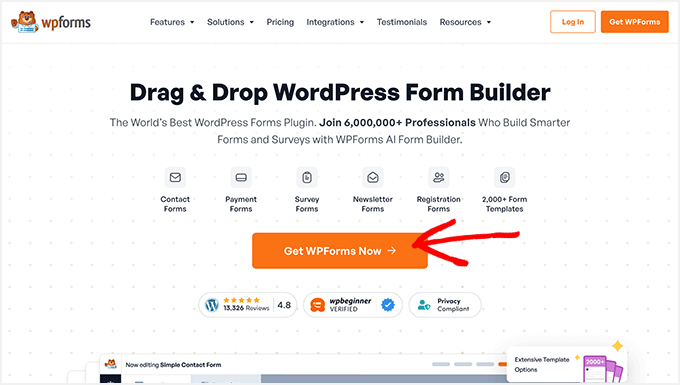
    3. WPForms AI

    WPForms coupon code

    Best for: Creating engaging WordPress forms using AI

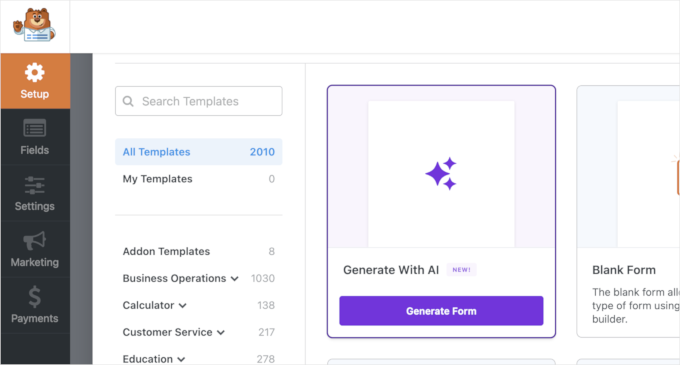
    WPForms is the most popular contact form plugin for WordPress, and its AI features make the process of creating smart, effective forms faster than ever. You can simply describe the type of form you need, and the AI will build it for you.

    Create a quick form using AI in WPForms

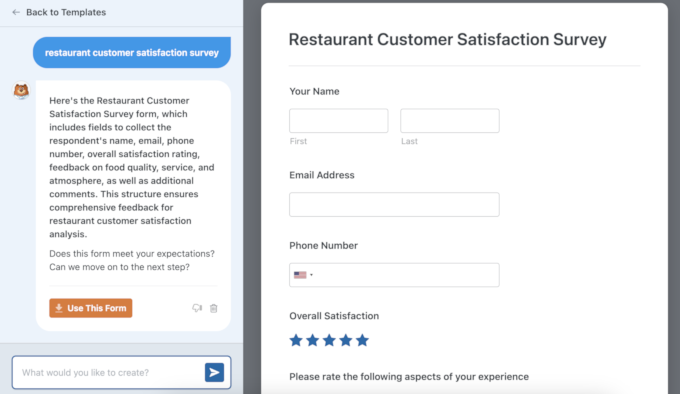
    This saves a lot of creative energy, especially when you need to build a longer form like a customer feedback survey or a job application.

    The AI can suggest questions, field types, and layouts, helping you gather the exact information you need from your users.

    Creating a form using AI in WPForms

    You can also use AI to generate form field choices, perform calculations, and translate your forms into different languages.

    The feature I use the most is its integration with Uncanny Automator. It allows me to do so much more with the data I collect with my forms.

    For example, I tried out a workflow using WPForms, Uncanny Automator, and OpenAI. When someone submitted my contact form, I got an instant summary of their message, plus a ready-to-send reply drafted in my brand voice. This made responding to leads faster, more consistent, and a lot less stressful.

    Key Features:

    • AI Form Builder: Create any type of form just by describing it in plain language.
    • AI Choices and Calculations: Generate choices for multiple-choice form fields or use AI to perform calculations.
    • Powerful Integrations: Connect your forms to CRMs and email marketing services like Constant Contact or HubSpot.
    • Advanced Fields: Includes features like conditional logic, file uploads, and digital signatures.
    Pros of WPForms Cons of WPForms
    Very easy to use, even for beginners AI features require a paid license
    AI saves a lot of time on form creation The free version is limited
    Excellent integration with other services

    Pricing: WPForms Lite is available for free. Paid plans with AI start at $49.50 per year.

    My Experience: I used the WPForms AI to create a detailed event registration form. It correctly suggested fields for attendee names, dietary restrictions, and session choices. The whole process took me less than 5 minutes, which was significantly faster than building it manually. To learn more, see our full WPForms review.

    4. FunnelKit

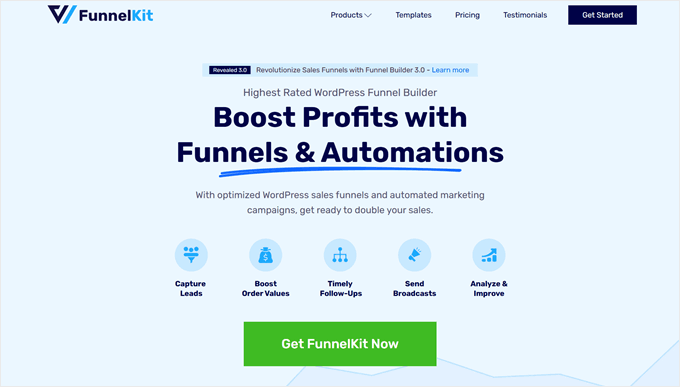
    FunnelKit landing page

    Best for: Powerful sales and marketing funnel automations

    FunnelKit (formerly known as WooFunnels) is a powerful sales funnel and automation builder for WordPress and WooCommerce. A sales funnel is simply the journey a customer takes from discovery to purchase.

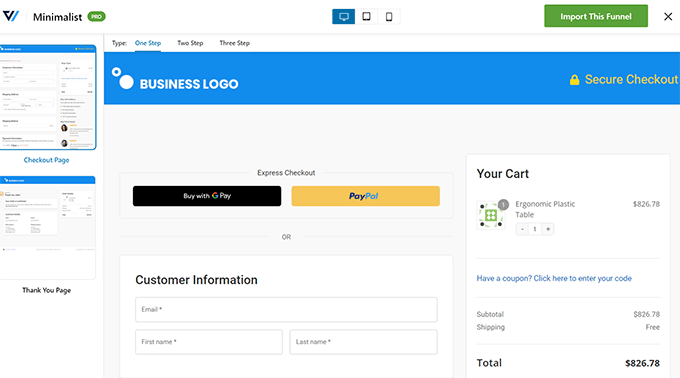
    FunnelKit helps you create optimized checkout flows, order bumps, and one-click upsells to increase your revenue.

    The FunnelKit Funnel Builder for WordPress

    FunnelKit’s automation engine is where it truly shines. You can set up automated email sequences for things like abandoned cart recovery, sending a “thank you” coupon after a first purchase, or winning back old customers.

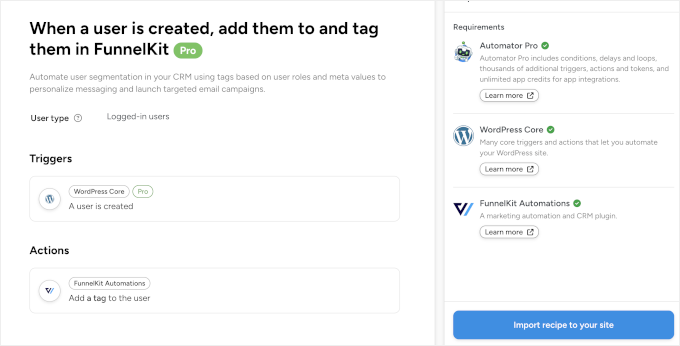
    I particularly like its integration with Uncanny Automator, which basically unlocks a whole lot more automations. This allowed me to connect FunnelKit to actions created by other WordPress plugins and third-party apps installed on my site.

    For example, I tried out an automation workflow where new users on my website were tagged and segmented in the customer relationship management (CRM).

    FunnelKit Uncanny Automator

    Key Features:

    • Sales Funnel Builder: Create high-converting sales funnels with optins, checkouts, and upsells.
    • Marketing Automation: Build automated email campaigns for abandoned carts, post-purchase follow-ups, and more.
    • A/B Testing: Test different headlines, prices, and designs to see what converts best.
    • Detailed Analytics: Get insights into your funnels to see exactly how they’re performing.
    Pros of FunnelKit Cons of FunnelKit
    All-in-one solution for sales funnels and automation It can be complex for absolute beginners
    Proven to increase store revenue The full suite of features requires higher-tier plans
    Excellent integration with WooCommerce

    Pricing: There is a free version available. The full Automations suite starts at $129.50 per year.

    My Experience: I’ve seen firsthand how an effective abandoned cart sequence can recover sales that would have otherwise been lost. This feature is incredibly powerful for growing an online business. For more details, take a look at our complete FunnelKit Automations review.

    5. All in One SEO (AIOSEO)

    The AIOSEO WordPress plugin, with built-in social media features

    Best for: AI Content and LLM SEO 📈

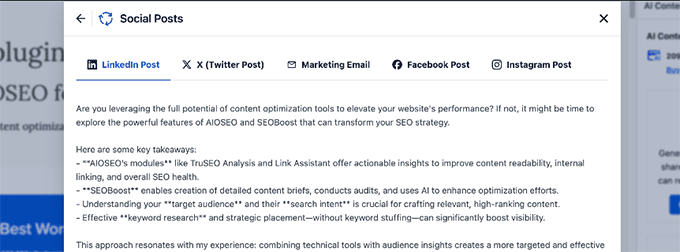
    All in One SEO (AIOSEO) is the best SEO plugin for WordPress, and its AI tools are designed to give you a competitive edge. It stands out for its ability to automatically generate social media posts based on your article’s content.

    I have been using it quite regularly, and it’s been a real time-saver.

    Generating social content using AIOSEO's AI content generator

    I also really like how it helps me optimize my content for AI citations and AI overviews.

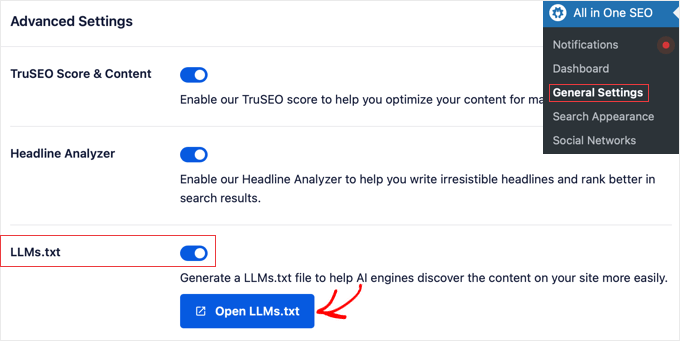
    One of its best features is the automatic generation of an llms.txt file. This is like a set of instructions that tells helpful AI bots, like Google’s, how to best understand and interact with your content.

    Enable llms.txt file on your WordPress site

    AIOSEO also has an AI title/meta description generator that helps you write compelling SEO metadata with a single click, which is perfect for overcoming writer’s block.

    Key Features:

    • AI Title & Description Generator: Instantly create SEO-optimized titles and meta descriptions.
    • Automatic llms.txt File: Controls how Large Language Models (LLMs) can use your content.
    • TL:DR Summary: Quickly generate key takeaways to optimize for Generative Engine Optimization.
    • Email Copy: Use AI to quickly generate a marketing email based on your article contents.
    • Rich Snippet Schema: Easily add schema markup for reviews, recipes, FAQs, and more to get rich results in search.
    Pros of AIOSEO Cons of AIOSEO
    Makes advanced SEO tasks easy The AI title generator is only in the Pro version
    Prepares your site for AI-powered search The free version has ads
    Saves time writing meta descriptions

    Pricing: There’s a free version available. Paid plans with AI features start at $49.60 per year.

    My Experience: The AI title generator in AIOSEO is a huge timesaver for me. It provides five different suggestions, which are usually more than enough to find a great option or spark a new idea. It’s a small feature that automates a surprisingly time-consuming part of publishing content. For more details, see our full AIOSEO review.

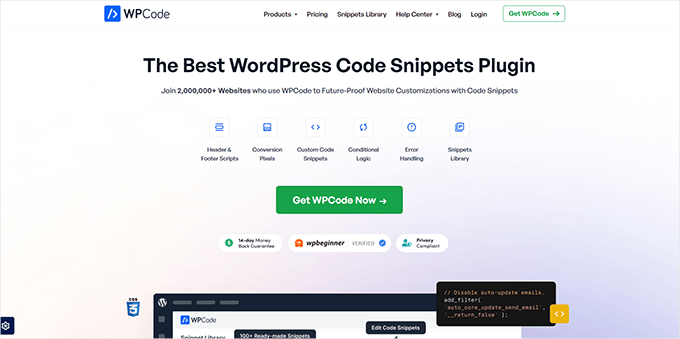
    6. WPCode

    WPCode website

    Best for: AI-powered code generator

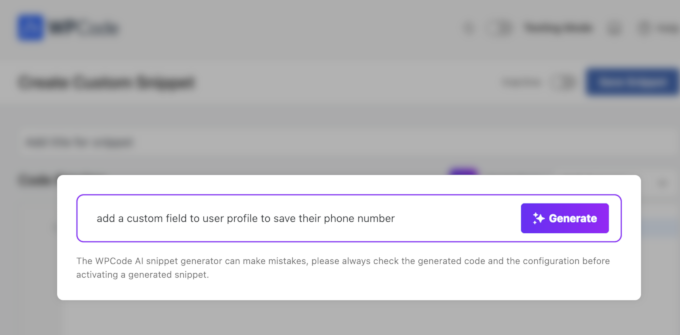
    WPCode is the safest and easiest way to add custom code snippets to your WordPress site. Its automated AI Code Snippet Generator addresses a major pain point for many users: the fear of breaking their website when trying to add new functionality.

    Instead of searching for code on the web and hoping it works, you can simply describe the function you need. WPCode’s AI will generate the PHP, CSS, or JavaScript snippet for you.

    Generate custom code snippets in WordPress using AI

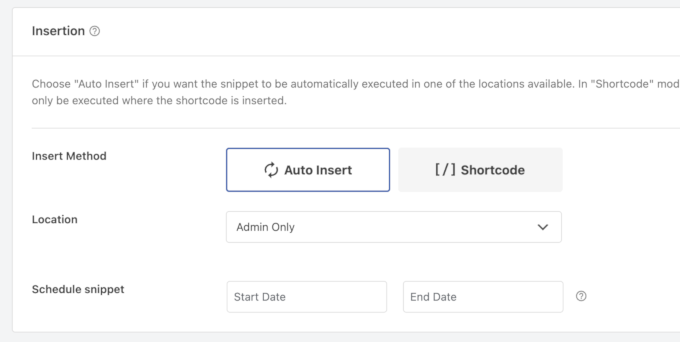
    It then safely inserts the code without requiring you to edit your theme’s functions.php file, which is a common cause of website errors.

    I like that it also automatically sets the insertion rule to only load the code snippet on the pages where you need it.

    Auto insert snippet based on where it is needed

    Key Features:

    • AI Code Generator: Describe the functionality you want, and the AI writes the code for you.
    • Safe Snippet Insertion: Inserts code safely without modifying core theme files.
    • Conditional Logic: Powerful rules let you control exactly where and when your code snippets run.
    • Code Library: Comes with a built-in library of verified, ready-to-use snippets for common tasks.
    Pros of WPCode Cons of WPCode
    Eliminates the risk of site-breaking errors The AI generator requires a paid plan
    Great for users with no coding knowledge The Free version is more limited
    Validates code to prevent common mistakes

    Pricing: WPCode has a free version. Paid plans start at $49.50 per year.

    My Experience: I have been using WPCode to manage code snippets on my websites. I recently needed to add a simple function to display the estimated reading time on my blog posts. Instead of coding it myself, I described it to the WPCode AI. It generated the perfect PHP snippet in seconds, and I used its conditional logic to apply it only to my single post pages. For details, see our full WPCode review.

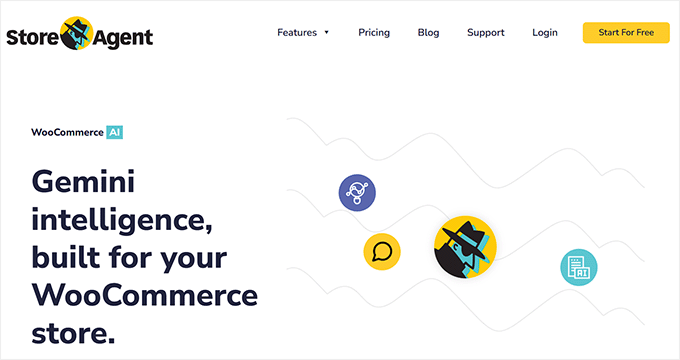
    7. StoreAgent

    StoreAgent website

    Best for: WooCommerce store automation

    StoreAgent is an AI toolkit built specifically for WooCommerce store owners. It automates one of the most time-consuming aspects of running an online store: writing unique and compelling product descriptions for dozens or even hundreds of items.

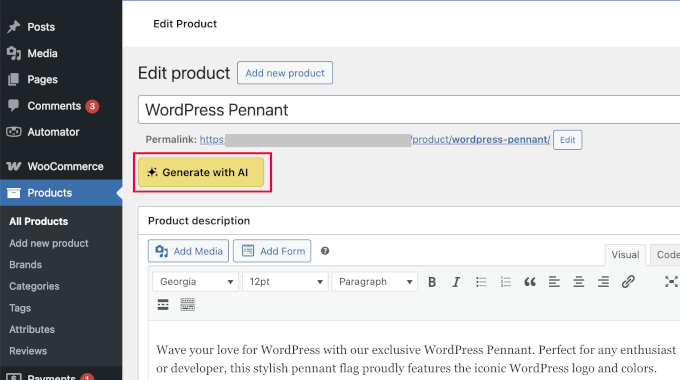
    Generate WooCommerce product description with AI

    It acts like an AI employee that handles all the tedious content tasks for your eCommerce store.

    You can use it to generate everything from long and short product descriptions to category descriptions and product tags.

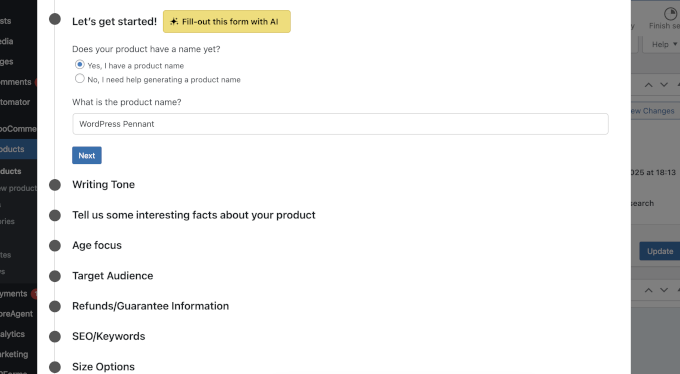
    StoreAgent AI product description form

    It even has a tool that can summarize product reviews, which can help you quickly understand customer feedback.

    Key Features:

    • AI Product Description Writer: Generate creative descriptions for all your products.
    • Category & Tag Generator: Automatically create SEO-friendly category descriptions and product tags.
    • Review Summaries: Get AI-powered summaries of your customer reviews to spot trends.
    • AI Chatbot: Add an AI chatbot to your store to answer customer questions 24/7.
    Pros of StoreAgent Cons of StoreAgent
    Huge time-saver for WooCommerce stores Specifically focused on eCommerce, not general sites
    Generates high-quality, unique content Limited free version
    Easy to use within the WordPress dashboard

    Pricing: A limited free version is available. Plans start from $49 per month.

    My Experience: If you’re running a WooCommerce store with a large inventory, then a tool like StoreAgent is almost essential. Manually writing descriptions is a massive time sink. This tool automates that process, freeing you up to focus on marketing, sales, and customer service.

    8. Make.com

    Make.com homepage

    Best for: Advanced automations for WordPress

    Make.com is an incredibly powerful general automation platform, similar to Zapier.

    It’s not a WordPress plugin itself, but it connects to WordPress and thousands of other web applications. You can use it to create complex automations that go far beyond your website.

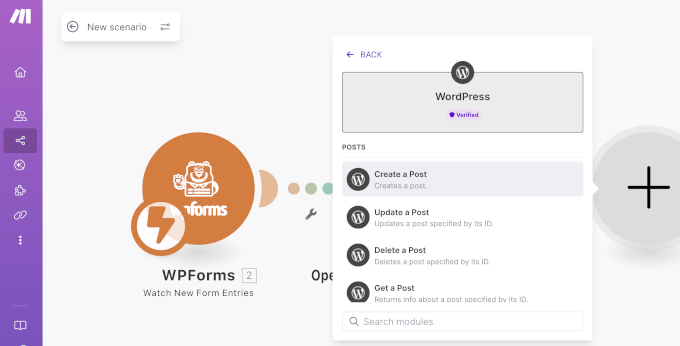
    For example, I tried out a “scenario” where a new WooCommerce order triggers a workflow that creates an invoice in QuickBooks. Or you could create a workflow where a user submits feedback through WPForms, and AI is then used to draft a personalized response.

    Creating a WPForms + WordPress + and OpenAI scenario in Make.com

    It offers a large number of integrations, supports all top AI platforms, and lets you perform programming and database tasks as well.

    What I didn’t like about Make.com is that it gets complicated really fast. The UI language is not beginner-friendly, and you will need to add a lot of API keys, Webhooks, and field parameters to get anything working.

    Key Features:

    • Visual Workflow Builder: A unique and intuitive interface for building complex automations.
    • 1,000+ App Integrations: Connect WordPress to virtually any cloud service you can think of.
    • Powerful Logic: Includes tools for routing, filtering, and error handling for very advanced workflows.
    • Generous Free Plan: The free plan is quite powerful and sufficient for many users.
    Pros of Make.com Cons of Make.com
    Extremely powerful and flexible Has a steeper learning curve than WordPress-native tools
    Connects to thousands of external apps WordPress plugin integrations are limited compared to Uncanny Automator
    Great visual builder for seeing your automation flow Can be overkill for simple, on-site tasks

    Pricing: Offers a great free plan. Paid plans start at just $9 per month.

    My Experience: I typically use Make.com for complex, multi-app workflows. While it’s incredibly powerful for connecting WordPress to external apps like Google Sheets or Airtable, setting up my first scenario took me longer compared to a WordPress-native tool like Uncanny Automator. I recommend it for when your needs grow beyond simple plugin-to-plugin automations.

    9. AI Power

    AI Power plugin

    Best for: AI-powered content and image generation

    I prefer to use AI Power for automated tasks like creating or updating articles, generating AI images, and automating comment replies. It brings a versatile suite of AI tools directly into your WordPress dashboard.

    Its main focus is on creating content and images. For example, you can use it to write blog posts, create product descriptions, and generate unique images for your articles.

    AI Power content writer

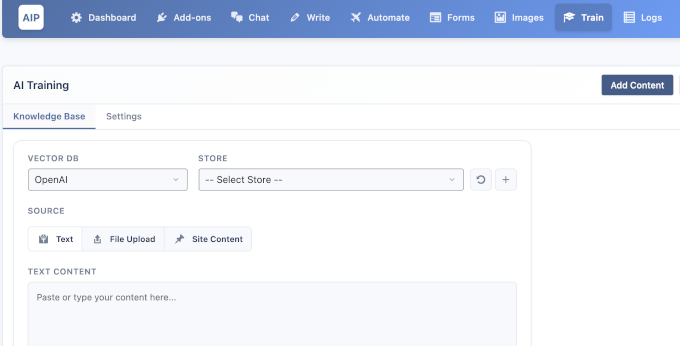
    One of its most interesting features is the ability to train the AI on your own content. I have not tested this feature quite as much, but I am very excited about it.

    Basically, it will let you use your existing content to train AI, which can be great for small businesses that want to build chatbots trained on their existing documentation.

    Train AI on your data

    Overall, it’s a great all-in-one toolkit for anyone who wants to heavily lean on AI for content creation. However, the plugin tries to do so many things and is not equally good at all of them.

    For instance, I found it better at writing content than automation, image creation, and other tasks.

    Key Features:

    • Content & Image Writer: Generate full articles and unique images from within WordPress.
    • AI Training: Train the model on your own data for more personalized content.
    • AI Chatbot: Add a ChatGPT-powered chatbot to your site that can be trained on your content.
    • WooCommerce Integration: Includes tools for generating product descriptions and other store content.
    Pros of AI Power Cons of AI Power
    Lots of different AI tools in one plugin The user interface can be a bit overwhelming
    The ability to train the AI is a unique feature Content quality can vary and always needs human editing
    Generous free version

    Pricing: Has a free version. Premium plans start at $9.99 per month.

    My Experience: I find AI Power to be a useful creative assistant. While I wouldn’t use it to write an entire article from start to finish without heavy editing, it’s great for generating ideas, creating outlines, or writing a first draft when I’m stuck. The image generator is also a nice touch for quickly creating blog post graphics.

    How to Choose the Right AI Automation Tool for Your Needs

    With so many great options, choosing the right one can feel tricky. Here’s a simple breakdown to help you decide based on your main goal:

    • If you need to connect all your WordPress plugins… then Uncanny Automator is your best bet. It’s the easiest and most powerful tool for making your plugins work together.
    • If you want to build a whole website with AI… then SeedProd is the clear winner. It’s the fastest way to get a professional design.
    • If you want to automate your marketing and sales… then FunnelKit is built specifically for this, helping you boost WooCommerce sales.
    • If you need to connect WordPress to many external apps… then Make.com is the most powerful and flexible option available.

    Frequently Asked Questions (FAQ) About AI Automation in WordPress

    I’ve been speaking to a lot of people lately about how to automate their workflows with AI. Here are my answers to some of those questions.

    Do I need to know how to code to use these AI tools?

    Absolutely not. All the tools on this list are designed to be user-friendly for beginners. Tools like Uncanny Automator and WPForms use simple, visual interfaces so you can set up powerful automations without ever looking at code.

    Will AI automation replace the need for other WordPress plugins?

    No, AI automation tools don’t replace your other plugins. Instead, they make your existing plugins more powerful by connecting them and allowing them to work together seamlessly.

    Can AI tools help with my WordPress SEO?

    Yes, they can. A tool like All in One SEO (AIOSEO) uses AI to help you write better meta titles and descriptions. Automation tools can also help by ensuring your content is structured correctly and by automating tasks that improve site performance, which is a factor in SEO.

    Are these AI tools expensive?

    Many of the tools on this list, including Uncanny Automator, WPForms, AIOSEO, and WPCode, offer excellent free versions to get you started. The paid plans are generally very affordable for small businesses and pay for themselves quickly in the time you save.

    If you liked this article, then please subscribe to our YouTube Channel for WordPress video tutorials. You can also find us on Twitter and Facebook.

    The post I tested 9 best AI automation tools for WordPress (my honest reviews) first appeared on WPBeginner.

  • Matt: Tim & Pablos

    Two of my favorite humans, Tim Ferriss and Pablos Holman, had a great interview together.

    Pablos has a great new book out, and Audrey Capital is a happy LP in his Deep Future fund. Of my many hacker friends, Pablos is probably the most public.

  • Open Channels FM: How Decentralized Social Platforms Grew from Identica to Modern-Day Mastodon

    Matthias Pfefferle discusses the Fediverse’s origins and evolution with Evan Prodromou, highlighting decentralized social networks, protocols, privacy, and the future of federated systems.

  • Matt: Beeper Updates

    Beeper has a fun set of September updates, adding support for Google Voice, LinkedIn now runs on-device, typing indicators for Google Messages and Instagram, full Telegram custom emoji support, and more.

  • Open Channels FM: Why Linking and Permalinks Are the Backbone of the Open Web

    Dave Winer talks about the open web’s basics, emphasizing that linking is crucial for real connection. Platforms limiting links miss out on that vibrant web experience.

  • How I Setup a WooCommerce Rewards Program (That Actually Works)

    How I Setup a WooCommerce Rewards Program (That Actually Works)

    I remember when one of my friends told me they were spending more on ads than they were making in sales from their WooCommerce store. That’s when I suggested we try adding a rewards program.

    We launched a simple refer-a-friend system, and within three months, their word-of-mouth sales had nearly doubled.

    I know that WooCommerce rewards programs can feel intimidating to set up. Many of the plugins I tested in the past were overly complicated and required too much configuration.

    That’s why I was so impressed when I tried RewardsWP. It’s one of the easiest plugins I’ve ever worked with, and I had a fully functional WooCommerce refer-a-friend program running in just a few minutes.

    In this guide, I’ll show you step by step how to create your own rewards program in WooCommerce using RewardsWP, so you can start boosting sales without relying on expensive ads.

    How to Create a Rewards Program in WooCommerce

    What Is a WooCommerce Rewards Program? (And Why You Need One)

    A WooCommerce rewards program is a system that gives customers benefits in exchange for their loyalty. While some programs award points for purchases, one of the most powerful types is a refer-a-friend program.

    This specifically rewards your existing customers for bringing new customers to your store.

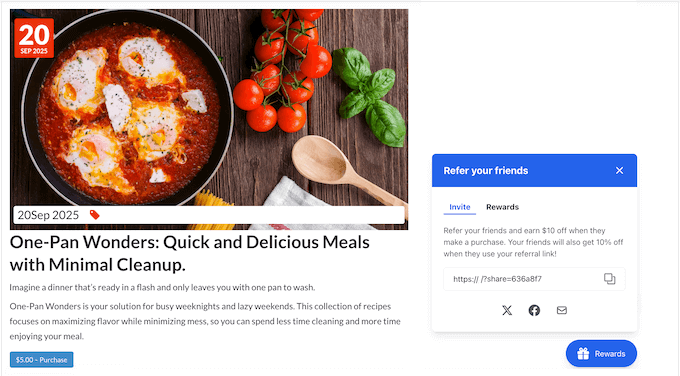
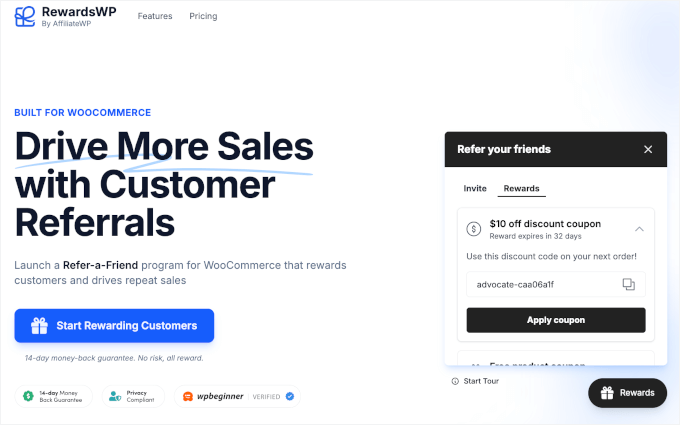
    An example of a refer-a-friend program, created using RewardsWP

    Here are the key benefits of adding a refer-a-friend program to your store:

    • Reduce Marketing Costs: Happy customers are your best marketers. A referral program turns word-of-mouth into a reliable channel for getting new customers, often at a lower cost than paid ads.
    • Improve Customer Retention: When a customer’s referral is successful, they receive a reward (like a discount coupon). This encourages them to return to your store to make another purchase in the future.
    • Increase Repeat Purchases: The reward given to the referring customer is a direct incentive for them to buy from you again. This simple loop is incredibly effective at creating repeat business.
    • Boost Average Order Value: You can set a minimum spending amount for the reward coupons. This encourages shoppers to spend more to claim their reward.
    • Create a Competitive Advantage: When choosing between two similar stores, customers will often pick the one that rewards them for spreading the word.

    While big retailers often compete on price, a rewards program lets you compete on customer appreciation and build a loyal community.


    How to Create a Rewards Program in WooCommerce (Step by Step)

    There are many types of WooCommerce rewards programs, from points systems to VIP tiers.

    But in this guide, I’ll focus on creating one of the simplest and most powerful versions: a refer-a-friend program. This will allow you to reward your current customers for bringing new customers to your store.

    For this tutorial, I’ll walk you through how to set up a rewards program using the RewardsWP plugin.

    While there are many great WooCommerce loyalty plugins available, I chose RewardsWP because I’ve found it to be the easiest and fastest for beginners to get started with. It focuses on the core features like points and referrals without overwhelming you with settings.

    RewardsWP

    You can learn more about the plugin in our detailed RewardsWP review.

    Step 1: Install and Activate RewardsWP

    First, you need to sign up for an account on the RewardsWP website. Just follow the onscreen instructions to create your account and make a payment.

    Next, you need to install and activate the RewardsWP plugin in your WordPress dashboard. For detailed instructions, you can see our beginner’s guide on how to install a WordPress plugin.

    Once the plugin is activated, a new ‘RewardsWP’ menu item will appear in your WordPress dashboard.

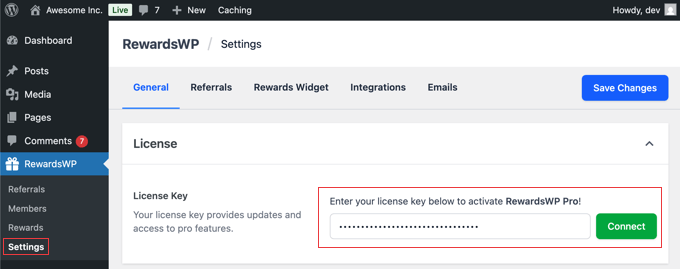
    The first thing you will need to do is enter your license key. You can find this in your account area on the RewardsWP website or in the email they sent you when you purchased the license.

    Simply paste your license key into the RewardsWP » Settings page and click the ‘Connect’ button.

    Enter Your RewardsWP License Key

    When I tested the plugin, it connected with my WooCommerce store automatically without any extra setup. Everything worked right away, which makes the process very simple for beginners.

    While this guide focuses on WooCommerce, it’s worth noting that RewardsWP also integrates with Easy Digital Downloads and MemberPress, making it a flexible choice for digital download stores and membership websites.

    Step 2: Set Up Your Referral Rewards

    The next step is to set up rewards for your customers and the people they refer to your online store.

    To get started, navigate to RewardsWP » Settings in your WordPress dashboard and click on the ‘Referrals’ tab.

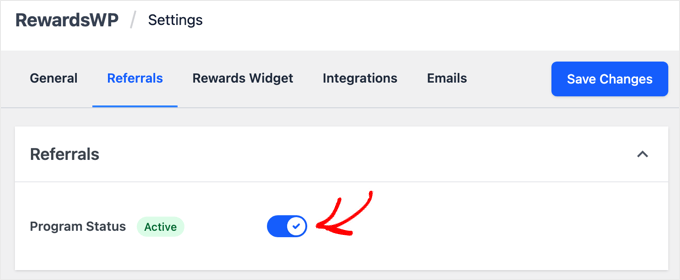
    The first thing you’ll need to do is activate the program by using the toggle to switch the Program Status from ‘Inactive’ to ‘Active’. Don’t worry, none of these settings will go live on your site until you click the ‘Save Changes’ button later.

    Toggle RewardWP's Program Status Setting to Active

    Once activated, it’s time to set up your rewards. You’ll see two main sections: ‘Advocate Reward’ (for your existing customer) and ‘Friend Award’ (for the new customer).

    In my experience, a referral program with a single-sided incentive isn’t nearly as effective as a double-sided one. After all, the friend is much more likely to use a referral link when they get something out of it, too.

    Setting Up Rewards for Advocates and Friends in RewardsWP

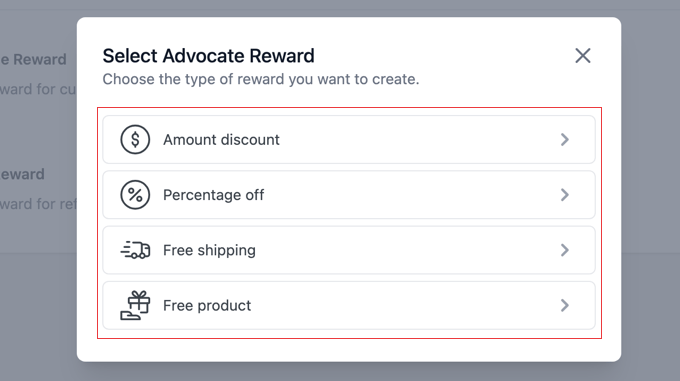
    When you click the ‘Add Reward’ button, a popup titled ‘Select Advocate Reward’ (or Friend Award) will appear.

    Here, you can choose the type of incentive you want to offer:

    • Amount discount: A fixed dollar amount off their purchase (such as $10 off).
    • Percentage off: A percentage discount on their order (such as 15% off).
    • Free shipping: Waives the shipping costs for the order.
    • Free product: A specific product from your store at no cost.
    Selecting a Reward Type in RewardsWP

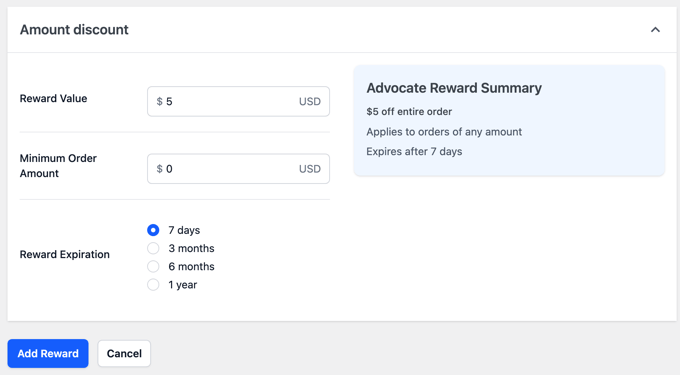
    Let’s walk through an example. If you select ‘Amount discount,’ you will be taken to a new page to set the specific rules for that reward. You’ll see fields for:

    • Reward Value: The exact dollar amount of the discount.
    • Minimum Order Amount: The amount a customer must spend to be able to use the reward.
    • Reward Expiration: How long the reward is valid, with options like 7 days, 3 months, 6 months, or 1 year.
    Options for an Amount Discount in RewardsWP

    Make sure you click the ‘Add Reward’ button at the bottom to save your settings.

    You’ll find that the other reward types, like ‘Percentage off’ or ‘Free shipping,’ have very similar and straightforward settings.

    Once you configure and save the reward for the Advocate, simply follow the same steps for the Friend.

    Once you have set up your Advocate and Friend rewards, don’t forget to click the ‘Save Changes’ button at the top of the screen to activate your rewards program.

    Tips for a Simple and Effective Reward Strategy

    I’ve found that keeping the rewards simple and easy to understand is the key to a successful program. A clear, valuable offer for both people is what turns your happy customers into your best marketers.

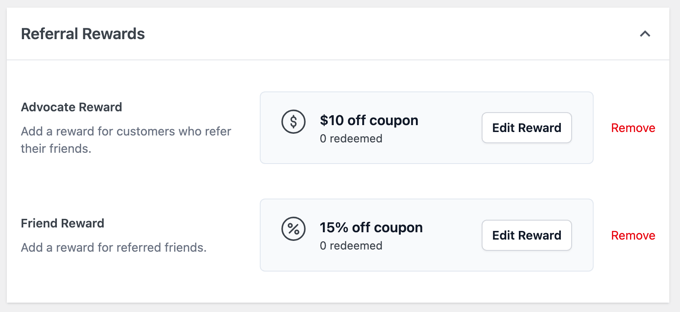
    For example, you could give the Advocate a $10 discount for a successful referral and welcome the new Friend with 15% off their purchases for 7 days. This provides an immediate, clear benefit and is very easy to set up.

    Example of How to Set Up a Rewards Program in RewardsWP

    While simple discounts are very effective, don’t overlook the ‘Free Product’ reward. This can be a powerful incentive because a tangible product often feels more valuable to customers than a small discount.

    Best of all, once you’ve set this up, the program runs on its own. RewardsWP handles all the tracking and reward delivery automatically, so you don’t have to manage it day-to-day.

    Step 3: Customize the Customer-Facing Rewards Widget

    Now, let’s customize how the rewards program looks to your customers. I recommend paying close attention to the customer’s side of things, because if the program is confusing or hard to use, then no one will use it.

    In your WordPress dashboard, navigate to RewardsWP » Settings and click on the ‘Rewards Widget’ tab.

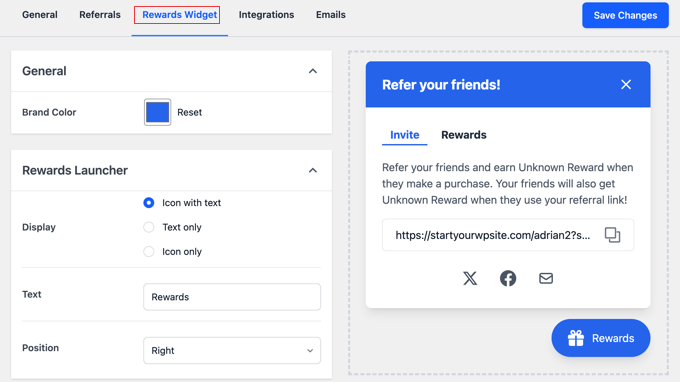
    RewardsWP Rewards Widget Settings

    This page controls the floating widget that your logged-in customers will use to find and share their referral link.

    Let’s walk through the settings:

    • Brand Color: Use this to select a color for the widget’s title bar and button, so it matches your website’s design.
    • Display: Choose how the widget button appears on your site. You can select ‘Icon with text,’ ‘Text only,’ or ‘Icon only.’
    • Button Text & Position: Here you can change the text that appears on the button (the default is ‘Rewards’) and choose whether it’s positioned on the ‘Right’ or ‘Left’ side of the screen.

    As you make these adjustments, you can see your changes in the live preview on the right side of the screen.

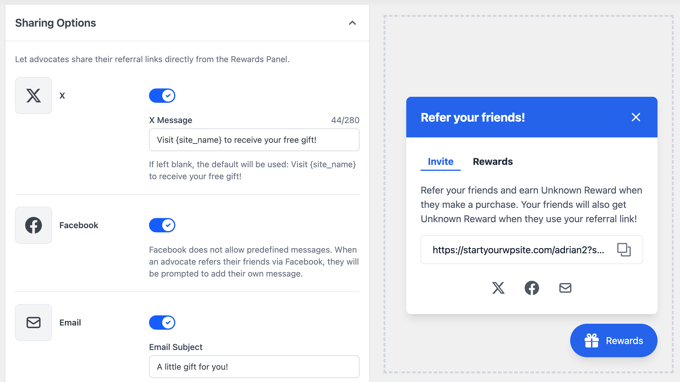
    Next are the important Sharing Options, which you can enable with a toggle:

    • X (formerly Twitter): You can write a default message that populates when a user clicks to share.
    • Facebook: This toggle allows sharing to Facebook. Users will be prompted to write their own message.
    • Email: You can customize the default email ‘Subject’ and ‘Message’ that gets sent. The plugin uses helpful tags like {reward_name} and {referral_link} to automatically insert the correct information.
    RewardsWP Sharing Options

    Pro Tip: I highly recommend personalizing the default email text to match your brand’s voice. This makes the entire experience feel more polished and trustworthy for your customers.

    Once you’re happy with the setup, make sure to click the ‘Save Changes’ button at the top right to make your widget live.

    Step 4: Configure Email Sender Settings

    The referral program sends two key types of emails, and you’ll want to make sure they look like they are coming directly from your store.

    The first is the invitation email that your customer (the Advocate) sends to their friend, which you customized in the ‘Rewards Widget’ settings.

    The second is an automated email that notifies the Advocate when their friend has successfully made a purchase and their reward has been issued.

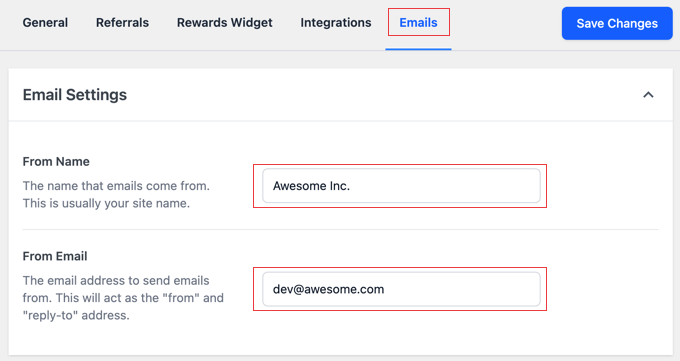
    To configure the sender details for these emails, stay in the RewardsWP » Settings area and click on the ‘Emails’ tab.

    RewardsWP Email Settings

    This page is very straightforward and has two important fields:

    • From Name: This is the name that will appear as the sender in your customers’ inboxes. You should enter your store’s name here.
    • From Email: This is the email address the rewards notifications will be sent from. It’s best to use a professional email address associated with your website, like support@yourstore.com.

    After filling in these details, don’t forget to click the ‘Save Changes’ button.

    💌 Ensure Every Email Gets Delivered

    WP Mail SMTP

    WordPress uses PHP mail by default, which can be unreliable and often sends emails to the spam folder.

    That’s why we recommend using WP Mail SMTP.

    It connects your site to trusted mailers to make sure that all emails end up in your customers’ inboxes.

    Step 5: Test Your Refer-a-Friend Program

    Before you promote your new program, it’s important to test the entire process from start to finish. This helps you catch any issues and ensures your customers have a smooth experience.

    Here is a quick checklist to follow:

    • Log in as a test customer and find the Rewards Widget. Copy your unique referral link from the widget.
    • Open the link in a different browser or an incognito window to simulate being a new visitor (the ‘Friend’).
    • Make a test purchase as the new ‘Friend’ and confirm that their reward (such as 15% off) is applied correctly at checkout.
    • Check your original test customer’s email inbox. After the purchase is complete, you should receive an automated email notifying you that your referral was successful and giving you your ‘Advocate’s Reward’.
    • Try to use the Advocate’s reward (such as the $10 off coupon) on a new order to make sure it works perfectly.

    Once you’ve confirmed that both rewards are delivered and working correctly, you can be confident that your new refer-a-friend program is ready for your customers.

    Bonus Tip: Track Your Program’s Success and Reward Top Advocates

    Once your program is up and running, RewardsWP makes it easy to see how it’s performing.

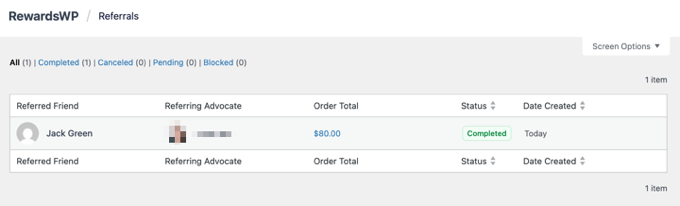
    To see a live log of all the referral activity, just navigate to RewardsWP » Referrals in your WordPress dashboard.

    The Referrals Report in RewardsWP

    On this page, you’ll find a detailed table of every referral that has occurred, including who sent it, who received it, and the status of the referral. This is the best place to monitor the success of your program.

    I suggest checking this page regularly to identify your most enthusiastic customers—your top advocates. You could even reach out to them personally with a thank-you note or an extra bonus coupon to strengthen that relationship and encourage even more referrals.


    Best Practices for a Successful Rewards Program

    Great job on getting your refer-a-friend program set up. Now that the technical side is complete, here are a few key strategies to ensure it becomes a powerful tool for growing your business.

    Find the Right Balance: You want your rewards to be motivating without hurting your profits. A great way to protect your margins is to set a ‘Minimum Order Amount’ for the rewards. This ensures that the discount is only applied to purchases of a certain size, encouraging customers to spend more.

    Keep It Simple: A program that is confusing won’t be used. The best strategy is to offer clear, direct value that is easy to understand in seconds. For example, “Give your friends 15% off, get a $10 coupon for yourself” is a simple and powerful offer.

    Promote Your Program: Don’t just launch your rewards program—make sure to promote it. Mention it in your email newsletters, on your order confirmation pages, and on social media. The more your customers know about it, the more they’ll use it.

    Monitor Your Results: Keep an eye on how many people are using the program. If you find that customers aren’t participating, don’t be afraid to test different reward offers to see what motivates them the most.

    Frequently Asked Questions About WooCommerce Rewards Programs

    Over the years, I’ve helped countless store owners set up their loyalty systems. Here are the answers to some of the most common questions I hear.

    What’s the difference between a referral and a loyalty program?

    A loyalty program covers the overall category of rewarding customers. This can include earning points for purchases, getting birthday rewards, or unlocking VIP tiers.

    A referral program, like the one we built today, is a specific type of loyalty program that rewards customers for one specific action: referring their friends. It’s often the best place to start because it directly drives new sales.

    Do I need coding skills to create a rewards program?

    No, you don’t need any coding skills when using a plugin like RewardsWP. The entire setup process involves clicking through settings pages and filling out forms, just like any other WordPress plugin.

    Will a rewards program slow down my website?

    A well-coded plugin like RewardsWP is designed to be lightweight and won’t hurt your site speed. It only loads its scripts on relevant pages, minimizing any performance impact.

    How are referral rewards handled for returned orders?

    RewardsWP handles this automatically. If a referred friend’s purchase is refunded, the reward that was issued to the original customer (the Advocate) can be automatically voided to prevent misuse.

    Additional Resources for WooCommerce Stores

    I hope this article has helped you create a rewards program in WooCommerce. Setting up a loyalty system is one of the smartest investments you can make in your customer relationships and long-term business growth.

    With RewardsWP handling the technical details, you can focus on what matters most: delivering great products and service that keep customers coming back.

    You might also be interested in reading these related tutorials:

    If you liked this article, then please subscribe to our YouTube Channel for WordPress video tutorials. You can also find us on Twitter and Facebook.

    The post How I Setup a WooCommerce Rewards Program (That Actually Works) first appeared on WPBeginner.

  • Tammie Lister: September in WordPress

    Another month has turned just like the leaves as autumn settles in. I was lucky enough to get time to focus thanks to sponsors, here is what I did within WordPress.

    August reflections

    It’s worth noting I am aware that August didn’t have a month post, this was due to travelling back from being at WordCamp US. This post is a merged month in many sense as the theme has maintained the same as September saw solidifying of what I was doing.

    A new team

    The Core Program team was announced and I will be the first team rep. This was a huge part of this month as required setting up and focus. I am beyond excited what this means.

    I am thrilled to say BigScoots is sponsoring me to cover some time focusing on the Core Program team and thankful for the opportunity to go to sponsors and highlight where I am needed most.

    Focusing on AI and editor

    Relating to the last section a little, Greyd are now going to be sponsoring me to focus both on Core AI and also on Core Editor. This combination allows me to focus even more my contributions where they can be effective.

    This split focus will add to ServMask’s sponsorship of me within Core AI already to give me extra time within that area.

    Areas of contribution

    My split this month was given a new focus thanks to being a team rep for a new team announced, Core Program. Beyond that, top areas were:

    • ‘Needs design’: adding design to Core AI experiments.
    • Triage: focused on 6.9 design issues, unblocking and also giving feedback.
    • Program team work: establishing team and getting goals brewing. Weekly posts here.
    • Core AI: focusing on roadmaps.

    Sharing the journey

    I got to share a few things this month, I also got to attend LoopConf and speak about AI at the local WP London meetup the night before:

    Upcoming plans for contribution

    October is already shaping up to be busy with Core Program and the 6.9 release.

    • Triage: focus on 6.9, but I don’t want to ignore the ancient and inactive trac log. This month triage won’t be my main focus but more about unblocking
    • Core AI: feedback and iterations for experiments and program work on abilities. I would also love to work on the documentation and handbook if time.
      • I had some awesome fun working on the issues for experiments. # # # #
    • Core Program: shape goals collaboratively, goals will be posted weekly on #core-program in Slack.

    Sponsors this month

    I now have these sponsors and from this month I am highlighting the areas they are helping me focus on if sponsoring a particular focus.

    BigScoots (Core Program), Greyd (Core AI / Core Editor), Kinsta (Triage), ServMask (Core AI), Aaron Jorbin, Tim Nash, Jeffrey Paul and Scot Rumery (Rumspeed). To everyone who sponsored me and helped me secure sponsorship, thank you.

    Want to sponsor me? You can through GitHub.

  • Matt: Telegram and Weird Al

    I have two interesting interviews to share with you today, the first is Lex Friedman interviewing Pavel Durov, the founder of Telegram. I started using and advocating for Telegram back in 2015, and Audrey Capital was part of their aborted fundraise in 2018. As a software craftsperson, I’ve always had tremendous respect for the team and the rate at which they shipped truly novel design and UI. I’m amazed by the speed at which they ship major features across multiple platforms. The network also has incredibly resiliency, which they get into on the podcast. As I’m often in poor connectivity situations in planes or remote locations, Telegram has been one of the networks that works most reliably.

    I’ve met Pavel only briefly about a decade ago, but have followed his story as he’s a unique character with an ascetic lifestyle, target of many intelligence agencies, sperm donor father of 100+ children, and many other unique characteristics. I use Telegram like I use X/Twitter, I put things I consider semi-public on it and I think of it like a social network and development platform, and since 2022 I’ve cross-posted my blog to a Telegram channel using a Jetpack bot. It’s probably my favorite community platform. The four hour interview between Lex and Pavel covers a lot of ground, but product builders will probably appreciate most the middle part around the 2-hour mark where they go into their engineering and design philosophies. (BTW I usually watch/listen to these at 2x speed.)

    If you’re looking for something a little lighter on a Sunday I recommend this heart-warming conversation between John Mayer and Weird Al Yankovic.

    I know this seems like an unusual pairing, but both Pavel and Weird Al are hackers in the sense that they examined the rules of the system and decided to create a new game.